 SCP Commander
SCP Commander — User Manual
SCP Commander is a two-pane file manager for moving files between your computer and servers. Your own files are on the left, the server's on the right; you copy between them with a key press or by dragging. If you have used WinSCP or Total Commander, you will feel at home.
It speaks SFTP (SSH), FTP, FTPS and Amazon S3 (and S3-compatible storage such as MinIO), and runs on Linux, Windows and macOS.
On a Mac, read ⌘ wherever this manual says Ctrl. Inside the app, press F1 (or User manual in the ? dialog) to open this manual; the box above its contents searches it.
1. Installing and updating
Fedora
On 64-bit PCs and ARM64 alike, add the SCP Commander repository once; after that, updates arrive with the rest of your system.
sudo curl -fsSL -o /etc/yum.repos.d/scp-commander.repo \
  https://scpcommanderrepo.blob.core.windows.net/fedora/scp-commander.repo
sudo dnf install scp-commander
dnf asks you once to trust the signing key. Its fingerprint is
2487 A915 7C5E 5352 374B 44FD E30D E231 7762 13CF.
Update later with sudo dnf upgrade.
Ubuntu and Debian
Ubuntu 22.04 or newer, Debian 12 or newer (64-bit PCs, and ARM64 such as a Raspberry Pi 4 or 5):
sudo curl -fsSL -o /etc/apt/keyrings/scp-commander.asc \
  https://scpcommanderrepo.blob.core.windows.net/ubuntu/scp-commander.asc
sudo curl -fsSL -o /etc/apt/sources.list.d/scp-commander.sources \
  https://scpcommanderrepo.blob.core.windows.net/ubuntu/scp-commander.sources
sudo apt update && sudo apt install scp-commander
Update later with sudo apt upgrade.
Windows and macOS
Download the installer from
scpcommander.manto.net:
the .exe (or .msi) for Windows — there's a separate .exe for Windows on
ARM (Surface, Snapdragon laptops) — and the .dmg for macOS, which runs
natively on both Apple Silicon and Intel Macs: open it and drag
SCP Commander to Applications. From then on the app updates itself: a few seconds after it starts, it checks for
a new version. If there is one, a bar at the top says so —
What's new? shows what it brings, Install & restart downloads it,
checks its signature and restarts into it, Later hides the bar until the
next start.
What's new after an update
After any update, a bar says SCP Commander was updated to … with a What's new? button. You can read the notes again any time from the ? dialog.
2. First start
The Connect to server dialog opens. If you have no saved sites yet, the list on its left offers to bring in the ones you already have:
- Import from WinSCP… — pick a
WinSCP.inifile. In WinSCP you get one from Tools → Export/Backup Configuration. - Import ~/.ssh/config — turns each
Hostentry in your SSH config into a site.
Details in Importing sites. Or just fill in the form, connect, and use Save as… to keep the site for next time.
3. Connecting to a server
Open the Connect to server dialog with Connect… in the top bar, or with + next to your tabs to open another connection alongside.
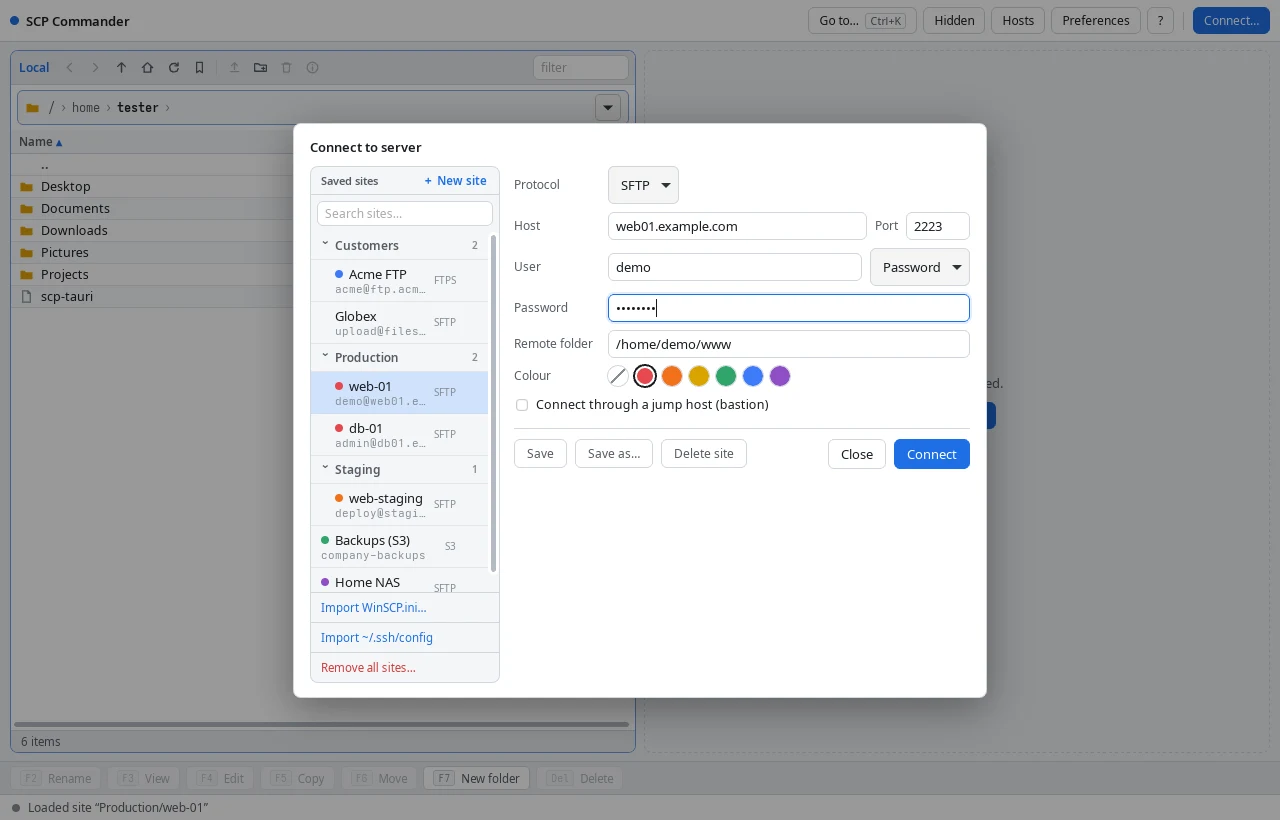
- Pick the Protocol: SFTP, FTP, FTPS or S3. The port fills itself in.
- Fill in Host, Port, User.
- Choose how to log in (SFTP), in the drop-down next to the user name:
- Password — type it in the Password field.
- Key file — your private key. Type its path or click Browse…; if the key has a passphrase, enter it in the Passphrase field.
- Agent — use the keys already loaded in your SSH agent.
- Optional: Remote folder — where the right pane opens. If that folder
no longer exists you land in
/instead. - Optional: Colour — see Site colours.
- Click Connect (or press Enter).
S3: leave Endpoint empty for Amazon S3, or enter the address of an S3-compatible service. Put your keys in Access key and Secret key, and fill in Bucket and Region.
While connecting
A Connecting… box shows how long it has been trying; Abort stops. If the server can't be reached, you get a Connection failed box after at most 15 seconds with the reason, plus Reconnect and Edit settings. The app never freezes waiting for a server that isn't there.
The server's key (SFTP)
The first time you connect to a server, the dialog shows its key fingerprint. If you trust it (ask the server's admin if unsure), click Trust & Connect; the app remembers it.
If a server's key ever changes, you get a warning instead. That happens after a server is reinstalled — but it is also what an attack would look like. Only click Forget old key & connect if you know why the key changed. Hosts in the top bar lists the keys you trust and lets you remove them.
Through a jump host (bastion)
Some servers can only be reached through another server. Tick Connect through a jump host (bastion) and fill in the bastion's host, port, user and login method. The app logs in to the bastion, tunnels through it to your server, and checks your server's own key as usual. Jump settings are saved with the site; the bastion's password is not, so prefer a key or the agent for the bastion.
4. Saved sites
The list on the left of the Connect dialog holds your saved sites, each with
user@host underneath.
- Click a site to load it into the form. Double-click connects.
- Search sites… above the list finds sites by name, host or user. Enter loads the first match, Esc clears the search.
Saving
- + New site (above the list, or New site… in Ctrl+K) clears the form so you can add another server without typing over the site you had open.
- Save as… saves the current form under a name. You can put it in a folder (type one or pick an existing one). Tick Save password in the keychain to have the password filled in next time.
- With a saved site loaded, Save updates it. Changes you haven't saved yet are marked with Unsaved changes and a dot next to the site.
- Delete site (or the ✕ on a site) removes it, along with its saved password.
Folders
A site saved as Hetzner/web shows as web inside a Hetzner folder.
Folders can be nested and collapse with a click; the app remembers which are
open.
Organising
- Right-click a site for Connect, Rename…, Move to folder…, Duplicate and Delete.
- Right-click a folder for Rename folder… — every site in it moves along.
- Drag a site onto a folder to move it there, or onto empty space in the list to move it to the top level.
Saved passwords always follow a site when it is renamed, moved or duplicated.
Site colours
Give a site a Colour in the form — say red for production — and Save. Whenever you are connected to it, its tab, the frame of the right pane and the host name in the top bar wear that colour, and the site has a coloured dot in the list. It's an easy way to always know which server you are about to change files on.
Importing sites
Import WinSCP.ini… reads WinSCP's sessions: host, port, user, key file, start folder, jump host and protocol. Two extras:
- Saved passwords come along and go into your system keychain. WinSCP
only hides them lightly in the file, so treat a
WinSCP.inilike a list of passwords and delete it when you're done. - PuTTY keys (
.ppk) are converted to a format the app can use, if PuTTYgen is available. If not, you are told, and the site falls back to password login.
Import ~/.ssh/config turns each Host entry into a site, reading it the
way ssh would: HostName, User, Port, IdentityFile, a single-step
ProxyJump and Include files are understood. Entries without a key file use
the SSH agent. Wildcard hosts, Match blocks and multi-step jumps are skipped.
Importing again updates sites with the same name (keeping their colour). When an import skipped or changed anything, a dialog lists it.
Remove all sites… at the bottom of the list deletes every site and its saved password, after asking.
5. The main window
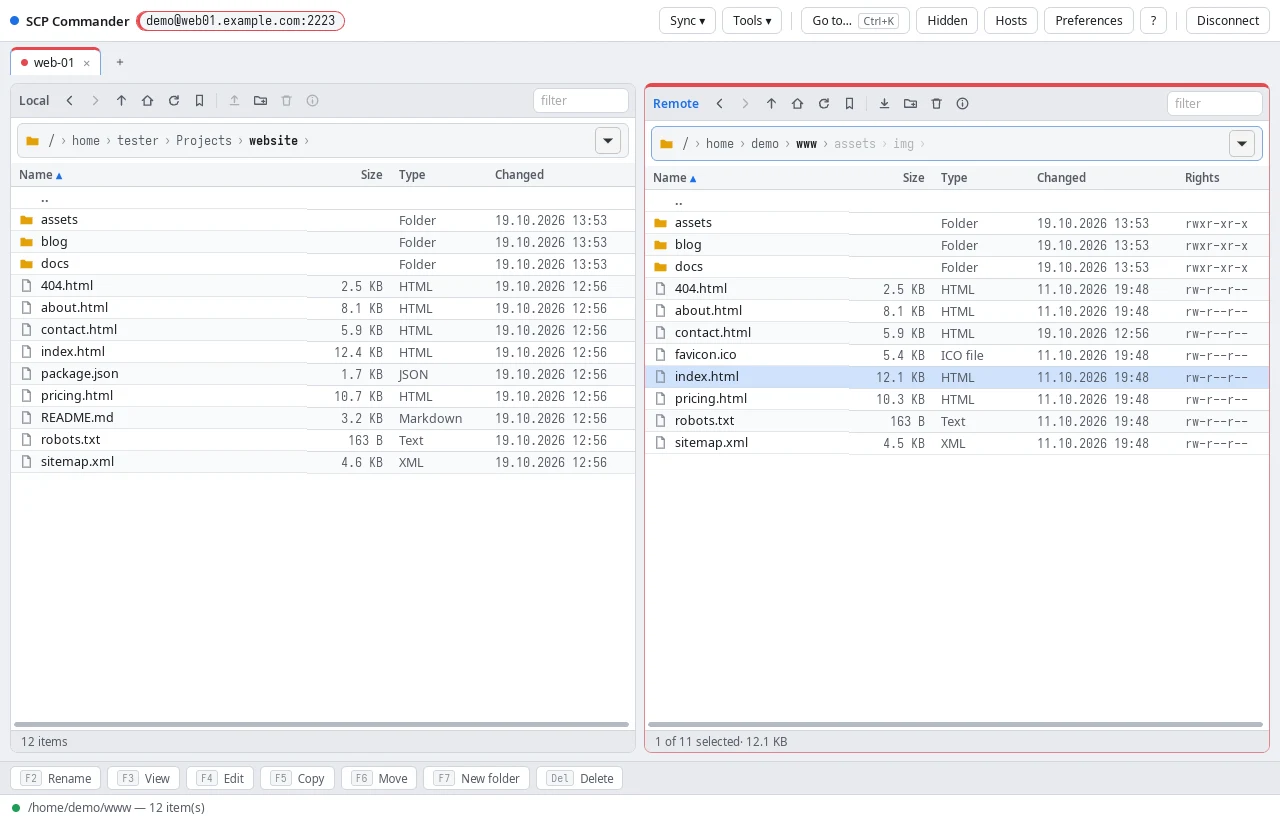
From top to bottom:
- Top bar — the server you're on, then Sync ▾ and Tools ▾ (when connected), Go to… (the quick switcher), Hidden (show hidden files), Hosts (trusted server keys), Preferences, ? (shortcuts, version, what's new, diagnostics), and Connect… / Disconnect.
- Tabs — one per connection. + opens another.
- Two panes — Local (your computer) on the left, Remote (the server of the current tab) on the right. The pane you are working in has a highlighted frame; Tab switches.
- Transfer queue — appears while files are moving.
- Function bar — F2 Rename, F3 View, F4 Edit, F5 Copy, F6 Move, F7 New folder, Del Delete, for the active pane.
- Status bar — what just happened, and transfer progress.
6. Browsing
- Double-click a folder to open it. The .. row, Backspace or the ↑ button goes up.
- Each pane's toolbar has Back, Forward, Up, Home, Refresh, Bookmarks, transfer, New folder, Delete, Properties and a filter box that narrows the list as you type.
- Sort by clicking a column header (Name, Size, Type, Changed); drag a header's edge to resize the column.
- The local pane updates by itself when files change on disk.
The path bar
The path above each list is made of clickable folders:
- Click a folder in it to jump there. After going up, the folders you came from stay (dimmed) so you can click your way back down.
- Click a › to get a menu of the subfolders at that level.
- Click the empty part of the bar, or press Ctrl+L, to type a path. Tab completes folder names, Enter goes there, Esc cancels.
- The ▾ at the end lists recently visited folders.
Bookmarks
The bookmark button in a pane's toolbar bookmarks the folder you're in (click again to remove it) and lists your bookmarks for that pane. Bookmarks also show up in the quick switcher.
7. Selecting files
- Click selects one item; Shift+click selects a range; Ctrl+click adds or removes single items.
- ↑ ↓ Home End PgUp PgDn move the cursor; with Shift they extend the selection. Space selects or deselects the row under the cursor.
- Ctrl+A selects everything, Ctrl+I inverts the selection.
- + selects and − deselects by pattern, for example
*.log. - Type a name to jump to the first matching row.
The status line under the pane shows how many items are selected and their total size.
8. Transferring files
There are several ways to copy files between the panes:
| You want to… | Do this |
|---|---|
| Copy the selection to the other pane | F5, or the pane's transfer button |
| Copy one file | Double-click it |
| Move (copy, then delete the original) | F6 |
| Drag and drop | Drag between the panes; drop on a folder to put it inside |
| Copy and paste | Ctrl+C in one pane, browse where you like, Ctrl+V in the other |
| Upload from your file manager | Drop files from your desktop or file manager onto the right pane |
| Download to your desktop | Drag files out of the window onto the desktop or a file manager |
Folders are copied with everything in them.
Dragging out of the window works from both panes. Files from the server are downloaded first, so it's meant for files up to 200 MB in total and not for folders; use F5 for anything bigger.
When files already exist
If something with the same name is already at the destination, the app asks:
- Overwrite — replace it.
- Only newer — replace only files older than the ones you're copying.
- Skip existing — keep what's there, copy only what's new.
- Cancel.
For folders, the choice applies to every file inside.
The transfer queue
Transfers run in the background, so you can keep browsing. The queue at the bottom shows each file's progress, speed and time left.
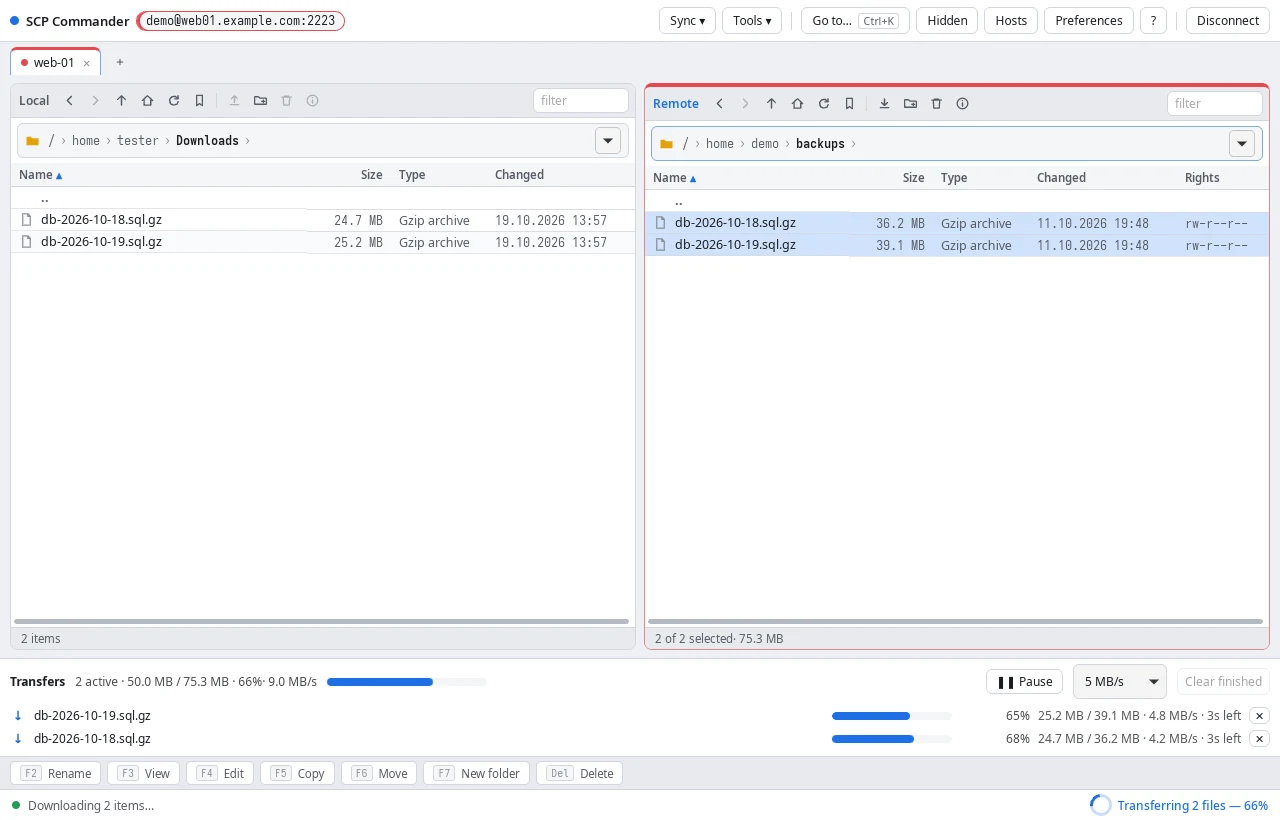
- × on a row cancels that transfer.
- Pause / Resume pauses everything.
- The speed limit menu caps the bandwidth.
- Retry all retries failed transfers; a failed row shows why it failed.
- Clear finished tidies the list.
- Tools ▾ → Transfers window opens the queue in a window of its own.
Safe uploads. Uploaded files are written under a temporary name and only renamed into place once complete, so an interrupted upload never leaves a half-written file under the real name. Resume. Interrupted transfers carry on where they stopped instead of starting over. Downloads keep the server's modification times.
Transfer history
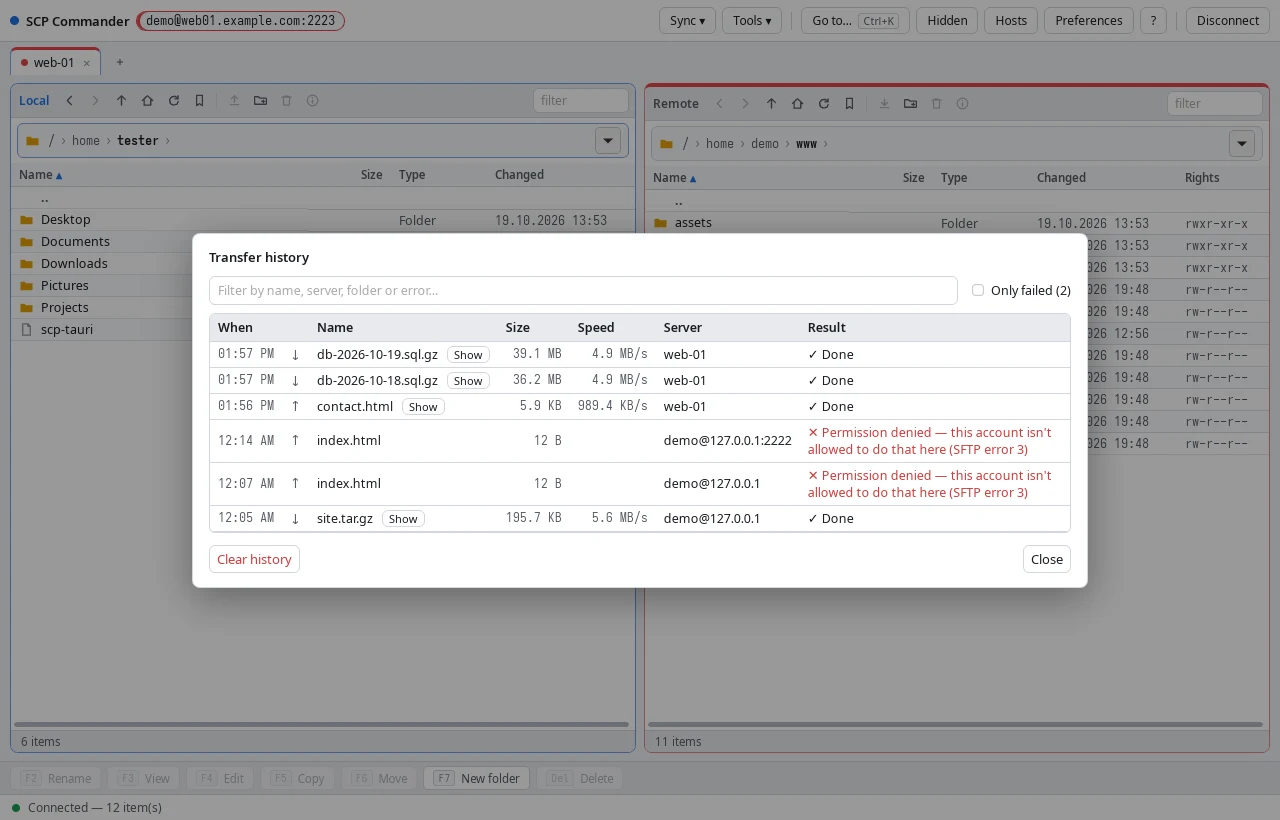
Tools ▾ → Transfer history… (or Ctrl+K, "history") lists every transfer that finished or failed — newest first, the last 500, kept across restarts: when, which way, size, speed, server, and for failures the reason. Filter by any word, tick Only failed to see just the problems, Show opens your file manager at a downloaded or uploaded file, and Clear history empties the list.
Quitting with transfers running asks first: Keep running or Quit anyway. Transfers that didn't finish are offered again in the queue the next time you start the app.
Notifications
If transfers finish while you're working in another window, you get a desktop notification: always when something failed, and on success when it took more than a few seconds. Synchronizations and Keep remote folder up to date problems notify too. Turn this off in Preferences.
9. Working with files
Most of these are on the function bar, in the pane toolbar, or on the right-click menu of a file.
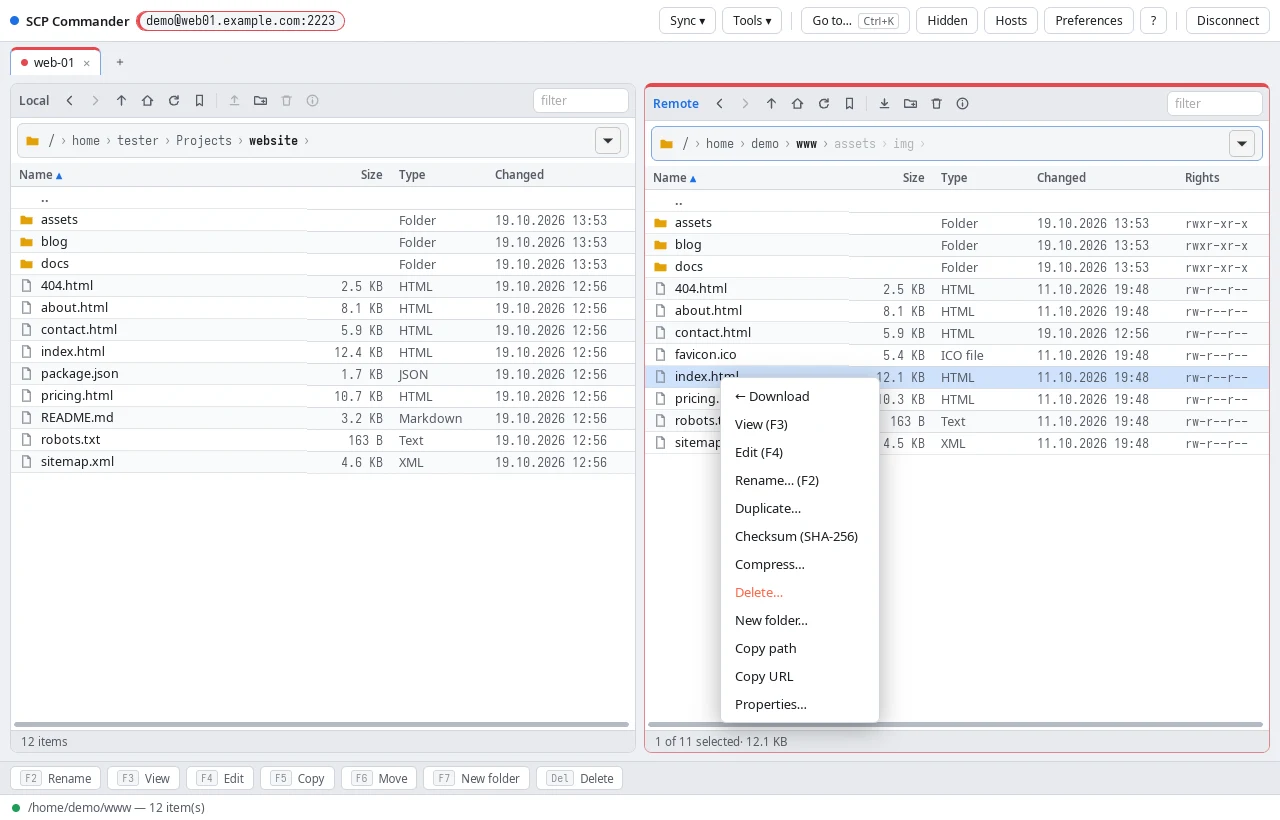
- Rename — F2.
- New folder — F7.
- Delete — Del. Asks first (unless you turn that off in Preferences).
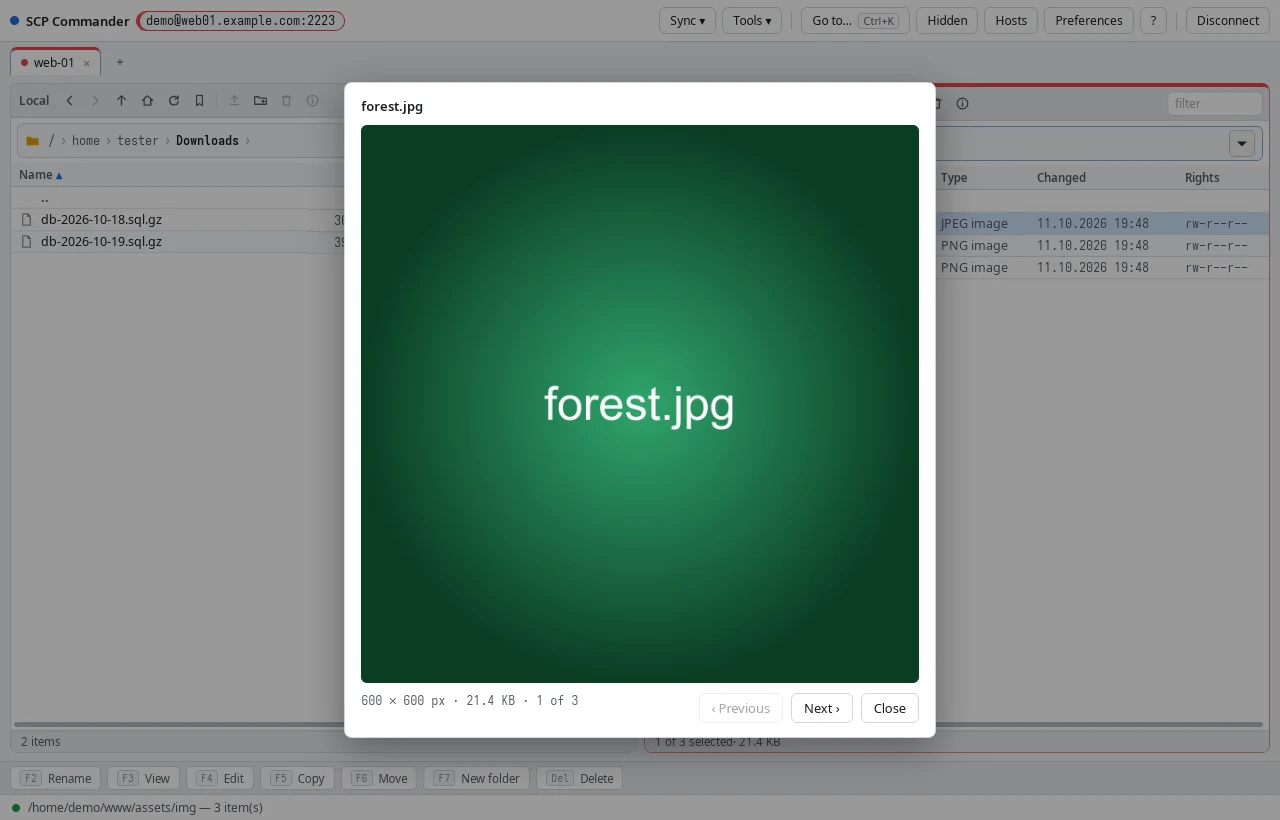
- View — F3 opens a file in a read-only viewer. Pictures (PNG, JPEG, GIF, WebP, SVG and more, up to 25 MB) open as images: click one to switch between fitting the window and actual size, and use ← / → (or Previous / Next) to go through the other pictures in the folder.
- Edit a remote file — F4. The file opens in your usual program for that file type; every time you save, it is uploaded back automatically.
- Properties — size and dates and, for remote files, the permissions as a grid of read/write/execute boxes you can change.
- Calculate size (right-click a folder) — the real size of everything in it.
- Checksum (SHA-256) (right-click a file) — the file's fingerprint. If the other pane has a file with the same name, both are checked and you're told whether they are identical — the surest way to know a transfer arrived intact. On SSH servers the server computes its side itself, so nothing is downloaded.
- Compress… (right-click remote items, SFTP) — packs them into a
.tar.gz,.zip,.tar.xzor.taron the server, without downloading anything. An existing archive is never replaced. - Extract to a new folder (right-click a remote archive, SFTP) — unpacks
it on the server into a new folder named after it (
site, orsite (2)if that exists), so nothing existing is overwritten. Compressing and extracting need an account that may run commands (most SSH logins can; "SFTP-only" accounts can't — the app says so). - Duplicate… (remote) — a copy next to the original.
- Copy path / Copy URL — puts the path, or an
sftp://address, on the clipboard. - Show in file manager (local) — Reveal in Finder, Show in Explorer or Open containing folder, depending on your system.
- Find files — Tools ▾ → Find files… searches the current remote
folder and everything below it by name pattern (such as
*.log); Open dir takes you to a result's folder.
10. Keeping folders in sync
All of these are in the Sync ▾ menu and work on the two folders currently open in the panes.
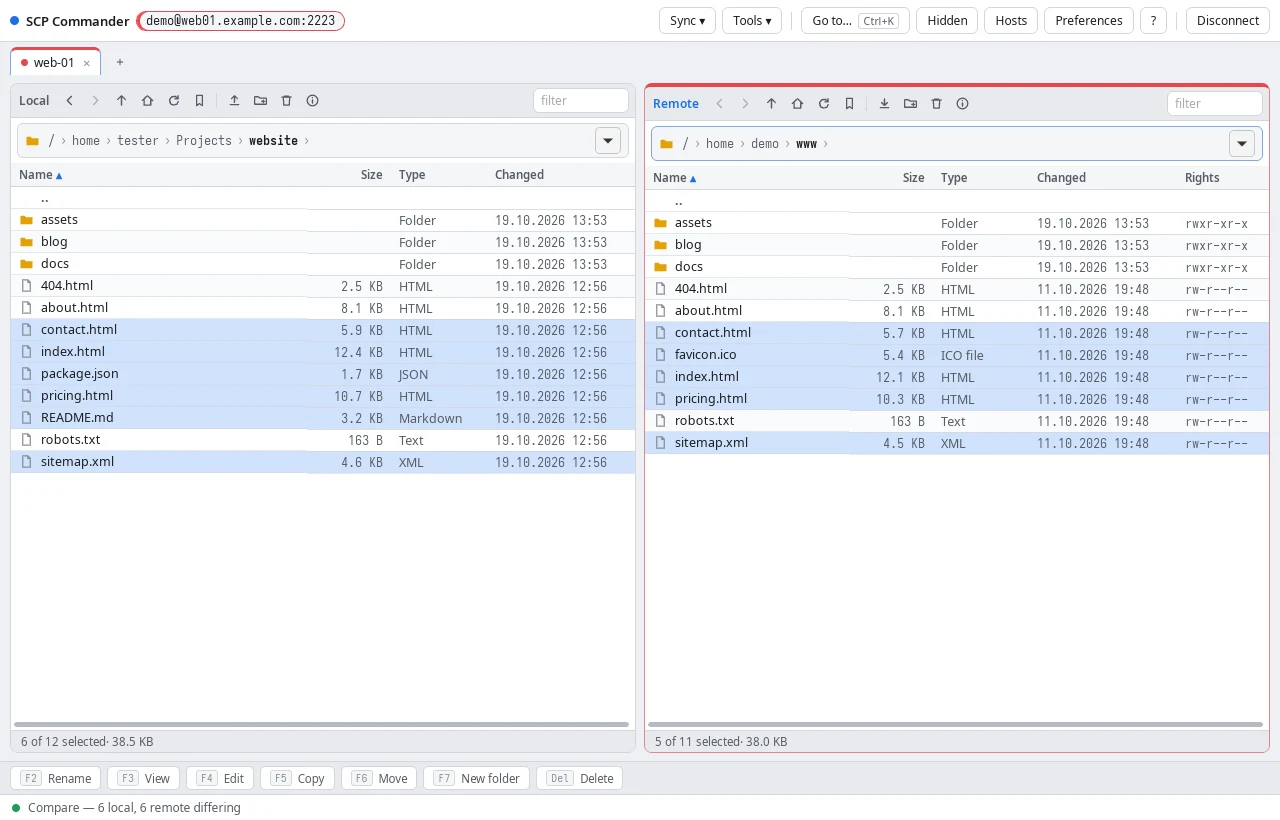
Compare folders
Selects, in both panes, everything that is missing on the other side or has a different size. Press F5 to copy exactly those.
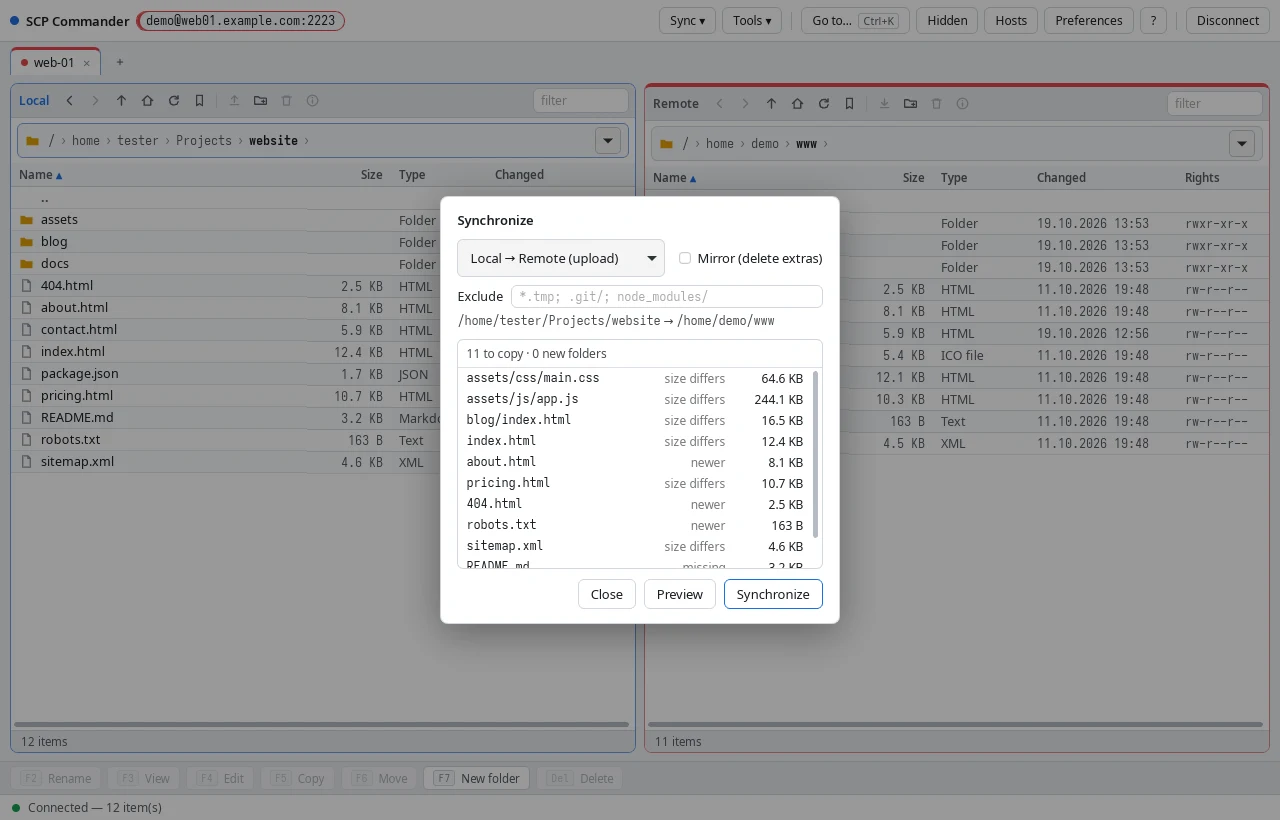
Synchronize…
Makes one folder match the other, Local → Remote or Remote → Local. Preview first lists every file that would be copied or deleted, so nothing happens by surprise. Tick Mirror to also delete files at the destination that no longer exist at the source.
Keep remote folder up to date…
Watches your local folder and uploads every change the moment you save it — ideal while working on a website or code that runs on a server. Options:
- Synchronize first — upload what's newer or missing before watching.
- Also delete on the server what I delete here.
- Exclude — patterns to leave alone.
A pill in the top bar shows it's running; Stop ends it (so does disconnecting that tab).
Synchronized browsing
When switched on, opening a folder in one pane opens the folder of the same name in the other pane too — handy when both sides have the same layout.
Excluding files
Exclude patterns skip files you never want to copy, such as
*.tmp; .git/; node_modules/. Separate patterns with ;. A pattern ending in
/ only matches folders. Capitals don't matter. The defaults live in
Preferences and apply to folder transfers and synchronizing; each
synchronization can change them for that run.
11. The quick switcher (Ctrl+K)
Press Ctrl+K (or click Go to…) anywhere, even in the Connect dialog, and type a few letters. It finds:
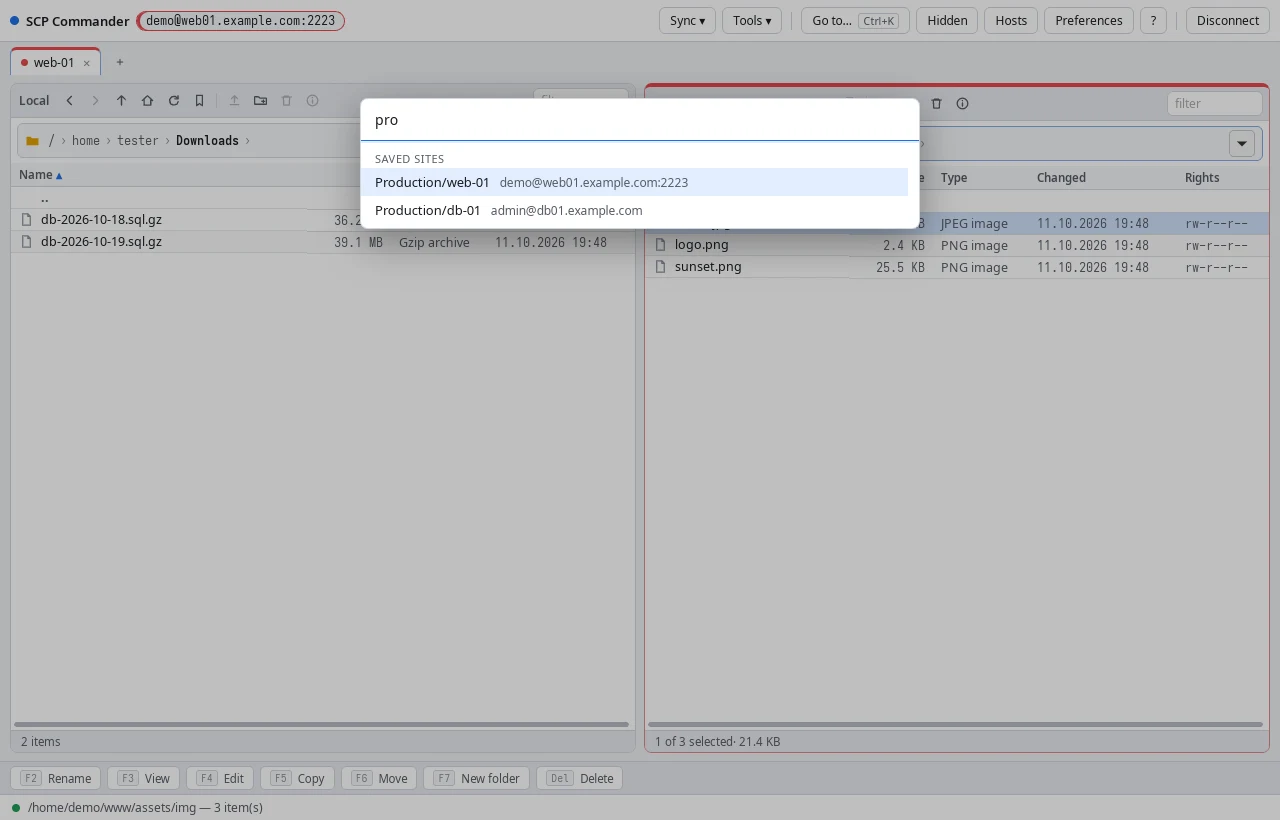
- Saved sites — Enter connects.
- Open tabs — Enter switches to it.
- Bookmarks — Enter goes to that folder.
- Actions — Synchronize, Compare folders, Find files, Console, Show hidden files, Preferences, Disconnect, Copy diagnostics and more.
Words can be typed in any order: host keys finds Trusted host keys….
Use ↑ ↓ to choose and Esc to close.
12. Several servers at once
Each connection gets its own tab above the panes; + opens another. Click a tab to switch, × to disconnect it. The left pane is shared; the right pane belongs to the current tab. Transfers keep running in tabs you're not looking at.
Reopen last session. The app remembers which saved sites you had open and in which folders. Next time you start it, the Connect dialog says Last time: … with Reopen, which reconnects all of them and brings you back to the tab you were on. (Connections typed in by hand without saving aren't remembered — there'd be no password to reconnect with.)
If a connection drops, the app reconnects by itself the next time you do something.
13. Tools
- Tools ▾ → Console… — run a command on the server and see its output (SFTP).
- Tools ▾ → Open in Terminal — an SSH session to the server in your system's terminal (SFTP).
sftp://links — on Linux, choose SCP Commander under Open with… for such a link. A link to one of your saved sites connects straight away, in the linked folder; any other link just fills in the Connect dialog so you can check it before connecting.
14. Preferences
Preferences in the top bar:
- Theme — follow the system, Light or Dark.
- Show hidden files, and Show Owner/Group columns on the remote pane.
- Confirm before deleting.
- Prompt when files already exist.
- Atomic uploads — the safe uploads described above.
- Notify me when transfers finish while the window is in the background.
- Exclude from folder transfers and sync — the default exclude patterns.
- Parallel transfers — how many files each connection copies at once (1–8).
15. Keyboard shortcuts
| Key | Action |
|---|---|
| F5 | Copy selection to the other pane |
| F6 | Move selection to the other pane |
| F2 | Rename |
| F3 | View file |
| F4 | Edit remote file (uploads on save) |
| F7 | New folder |
| Del | Delete |
| Enter | Open folder |
| Backspace | Parent folder |
| Tab | Switch between the panes |
| ↑ ↓ Home End PgUp PgDn | Move the cursor (with Shift: extend the selection) |
| Space | Select / deselect the current row |
| Ctrl+A / Ctrl+I | Select all / invert selection |
| + / − | Select / deselect by pattern |
| Ctrl+C, then Ctrl+V in the other pane | Copy the selection there |
| Ctrl+K | Quick switcher |
| Ctrl+L | Type a path |
| typing a name | Jump to a matching row |
The ? button shows this list inside the app.
16. Troubleshooting
"Connection failed". The box says why. Timed out or refused usually means a wrong host or port, a firewall, or a VPN that isn't connected. Edit settings takes you back to the form; Reconnect tries again.
Host key warning. See The server's key. Check with the server's admin before accepting a changed key.
"No password keyring is available" (Linux). Passwords are kept in your desktop's keyring (GNOME Keyring or KWallet), which must be running and unlocked. On a normal GNOME or KDE desktop it is. The site is still saved — just without its password.
A red bar: "Something went wrong inside SCP Commander". The app ran into an internal error. It says what happened instead of quietly failing. Use Copy diagnostics in that bar, or in the ? dialog, and paste the text into your bug report.
Reporting a problem. ? → Copy diagnostics copies the app version, your system, whether the keyring works, and the recent log. It contains server names from your recent activity but never passwords — glance over it before you send it. ? → Open log folder shows the log file itself.
17. Your data and security
- Passwords are stored only in your system's keychain — macOS Keychain, Windows Credential Manager, or GNOME Keyring / KWallet on Linux — and only when you tick Save password. They are never written to the app's files or its log.
- Saved sites (names, hosts, users, settings — no passwords) are in
~/.config/scp-commander/sites-tauri.jsonin your home folder. - Trusted server keys are in
~/.config/scp-commander/known_hosts. Keys from your own~/.ssh/known_hostsare respected too, but never changed. - The log is in your user's app-data folder
(Linux:
~/.local/share/net.manto.scpcommander/logs). It records errors and what failed — never passwords. - Updates are signed. The app and your package manager only install updates carrying the publisher's signature.